I Let an AI Agent Publish My Blog Post While I Was in Another Conversation. Here's the Workflow.
How a Claude agent typed a finished draft straight into Substack, formatting and all, while I sat in a completely different conversation. Here's the exact agentic workflow, walked through for beginners.
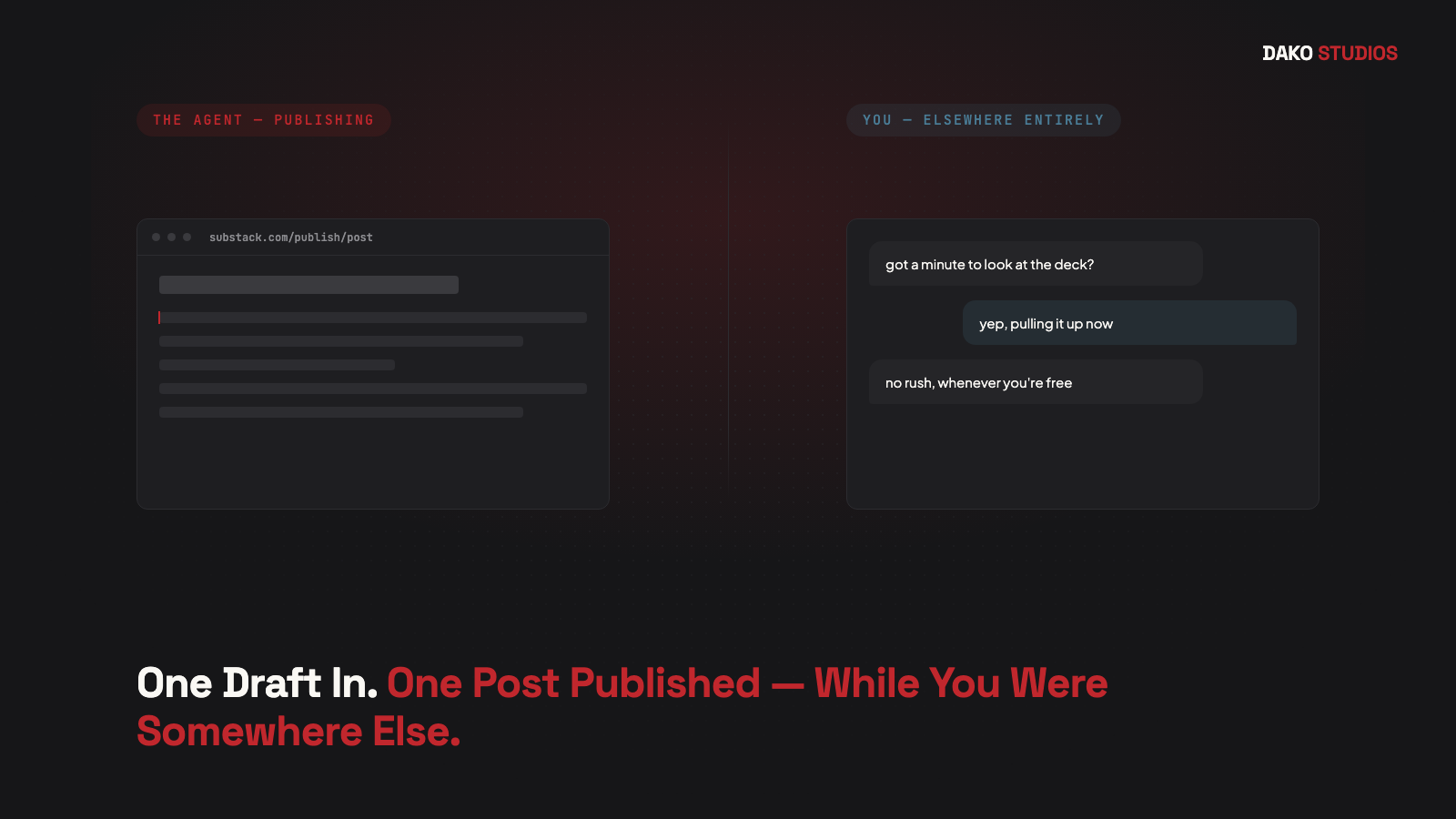
A few days ago I posted a short video that surprised a lot of people. In it, a Claude agent took a post I had already written and typed it straight into the Substack editor, formatting headers, breaks and all, while I sat in a completely different conversation with a colleague, not touching that screen at all.
Nobody was faking anything. That's what an agentic workflow actually looks like in practice, and it's a lot more accessible than most people assume.
This post is the walkthrough I promised everyone who commented "agent." It explains what actually happened, why it matters, and how you can set up the same kind of handoff yourself, even if you've never used an AI agent for anything beyond a chat window.
What "agentic" actually means here
Most people have used Claude, ChatGPT or similar tools to write or edit text. That's still you doing the work of copying, pasting, and formatting. An agentic workflow is different: you hand the agent a goal and the tools it needs to reach that goal, then step away while it works.
In my case, the goal was simple: take a finished draft and get it live on Substack, properly formatted, without me driving the browser myself. The agent needed a way to see the screen and interact with it directly, not just generate text for me to paste in.
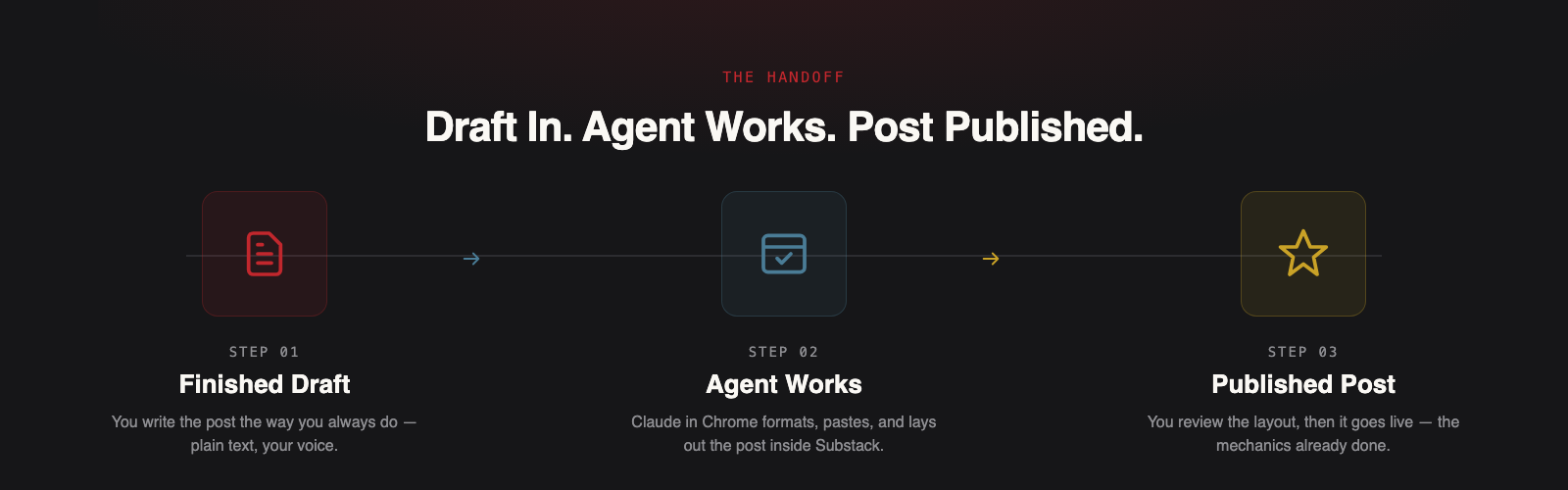
That's the whole shift. Once an agent can act inside an interface on your behalf, "writing a blog post" stops being one task you sit through start to finish, and becomes two tasks running in parallel: the agent publishing, and you doing something else entirely.
Why this is worth setting up, not just watching
The obvious win is time. The less obvious one is attention. Publishing a post usually means switching between your draft, the platform's editor, image uploads, formatting checks and the preview screen. Each switch is a small tax on your focus. Handing that whole sequence to an agent means the only attention it costs you is the minute it takes to review the result before it goes live.
For a founder running several things at once, that's the actual point. Not "AI wrote my post," but "I got twenty minutes back to spend on something that needed me, not a screen."
The beginner walkthrough
You don't need to be technical to do this. Here's the version built for someone doing it for the first time.
Step 1: Write your draft first, separately
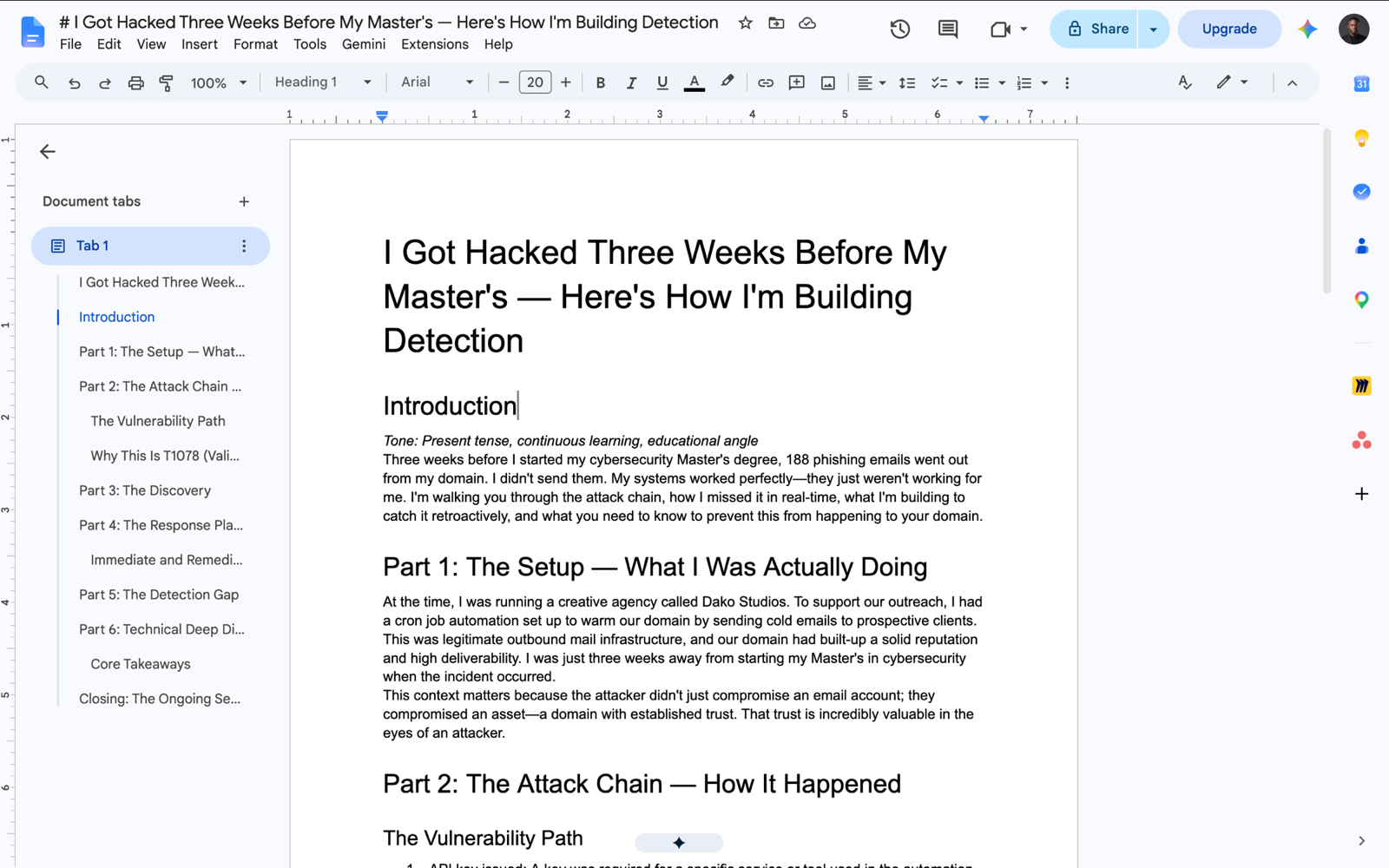
Agentic workflows work best when the agent isn't also doing your thinking for you. Write or finish your post the way you normally would, in whatever document or notes app you use. Keep it as plain text so it's easy to hand over.
Step 2: Install Claude in Chrome
A chat window alone can't publish anything for you, it can only generate text. What you need is an agent that can control your browser directly, opening tabs, clicking into fields, and typing the way you would. That's what Claude in Chrome does, and this is the exact setup I used.
A few things to check first: it's currently available on paid Claude plans (Pro, Max, Team or Enterprise), and it only works in Chrome or Edge, not Safari, Firefox, or mobile browsers.
Here's the install, step by step:
- Open Chrome and go to the Claude in Chrome extension page on the Chrome Web Store. Before you click anything, check the listing shows Anthropic as the publisher, that's your confirmation it's the genuine extension.
- Click Add to Chrome, then confirm by clicking Add extension in the pop-up.
- Once it's installed, click the puzzle piece icon in your Chrome toolbar and pin Claude in Chrome so it's always visible.
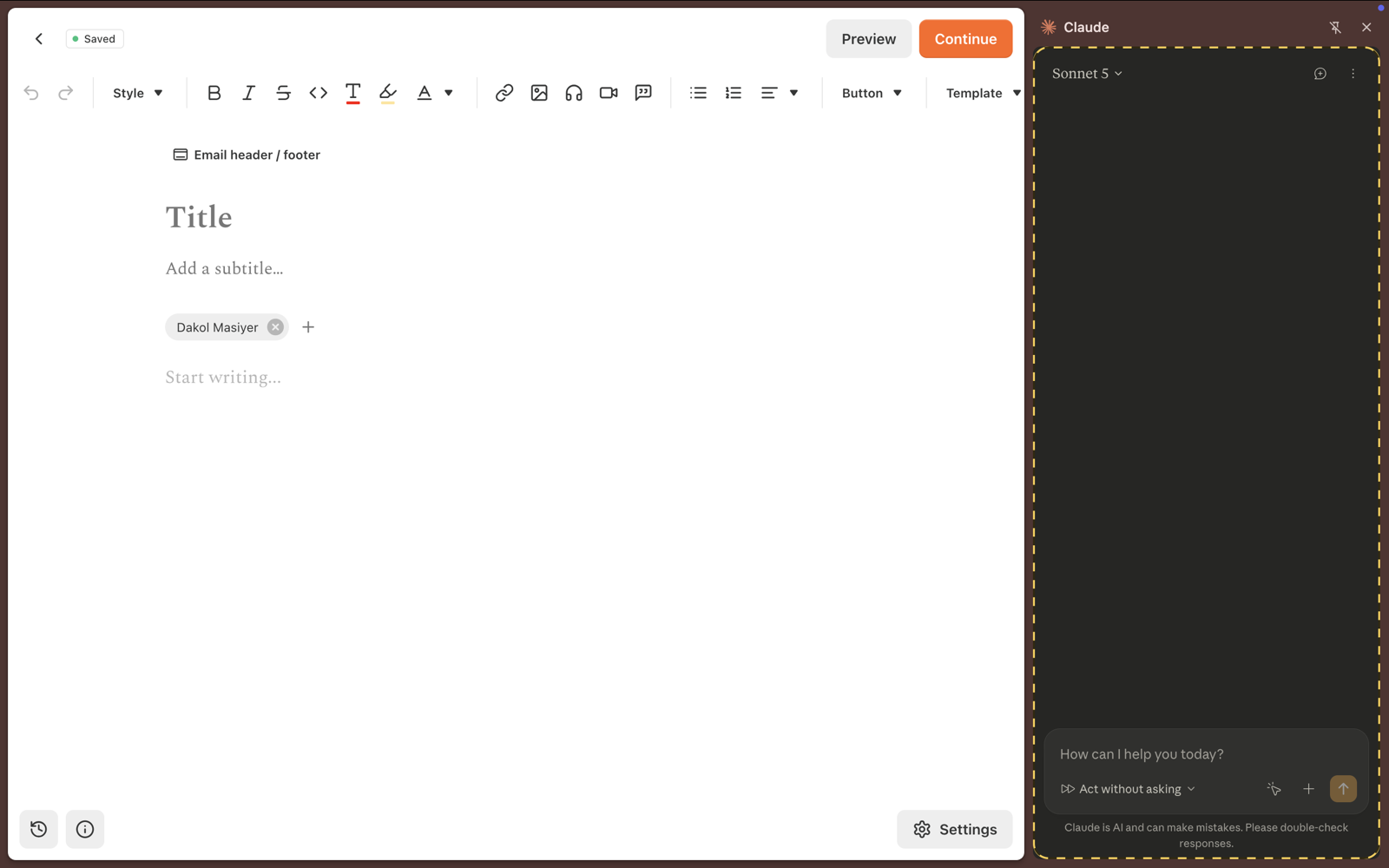
- Click the Claude icon to open the side panel, and sign in with your Claude account, the same one on your paid plan.
- You'll be asked to choose a permission mode. Leave it on "Ask before acting" for now, this means Claude checks with you before doing anything on a page. You can switch to more autonomous modes later once you trust how it behaves on a given site.
- Every website is off by default. Open the extension settings and add the site you want Claude to work in, for this workflow, that's substack.com. Claude can only read and act on pages you've explicitly allowed.
- To check it's working, open any page and ask Claude in the side panel to summarise it. If it responds with the actual content of the page, you're properly connected.
If you're already using the Claude desktop app, there's a second way in: open Settings, find Connectors, toggle on Claude in Chrome, and it'll prompt you to install the extension if it isn't already there. This links it to your chats directly rather than the side panel.
Step 3: Open Substack and give the agent your draft and a clear instruction
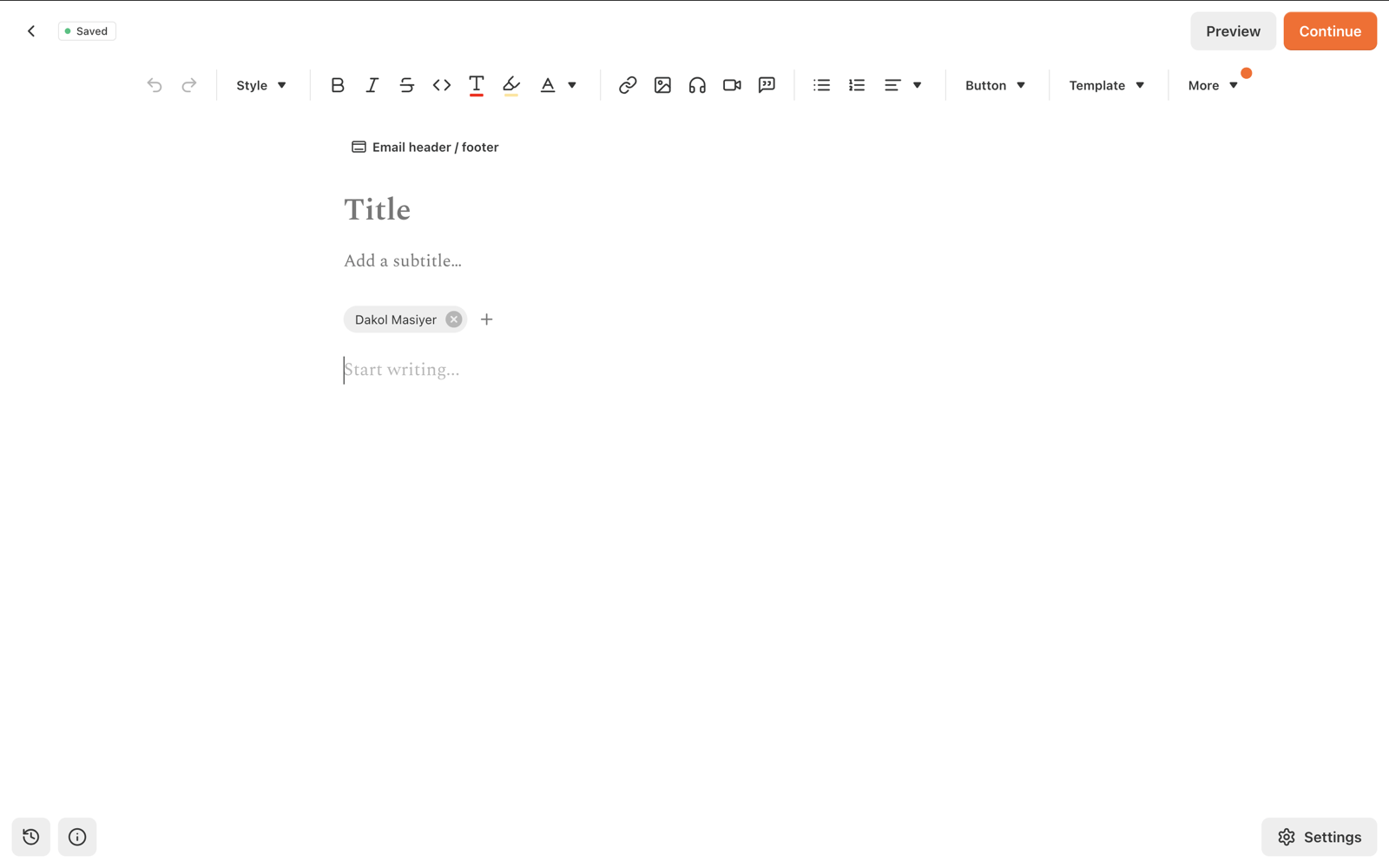
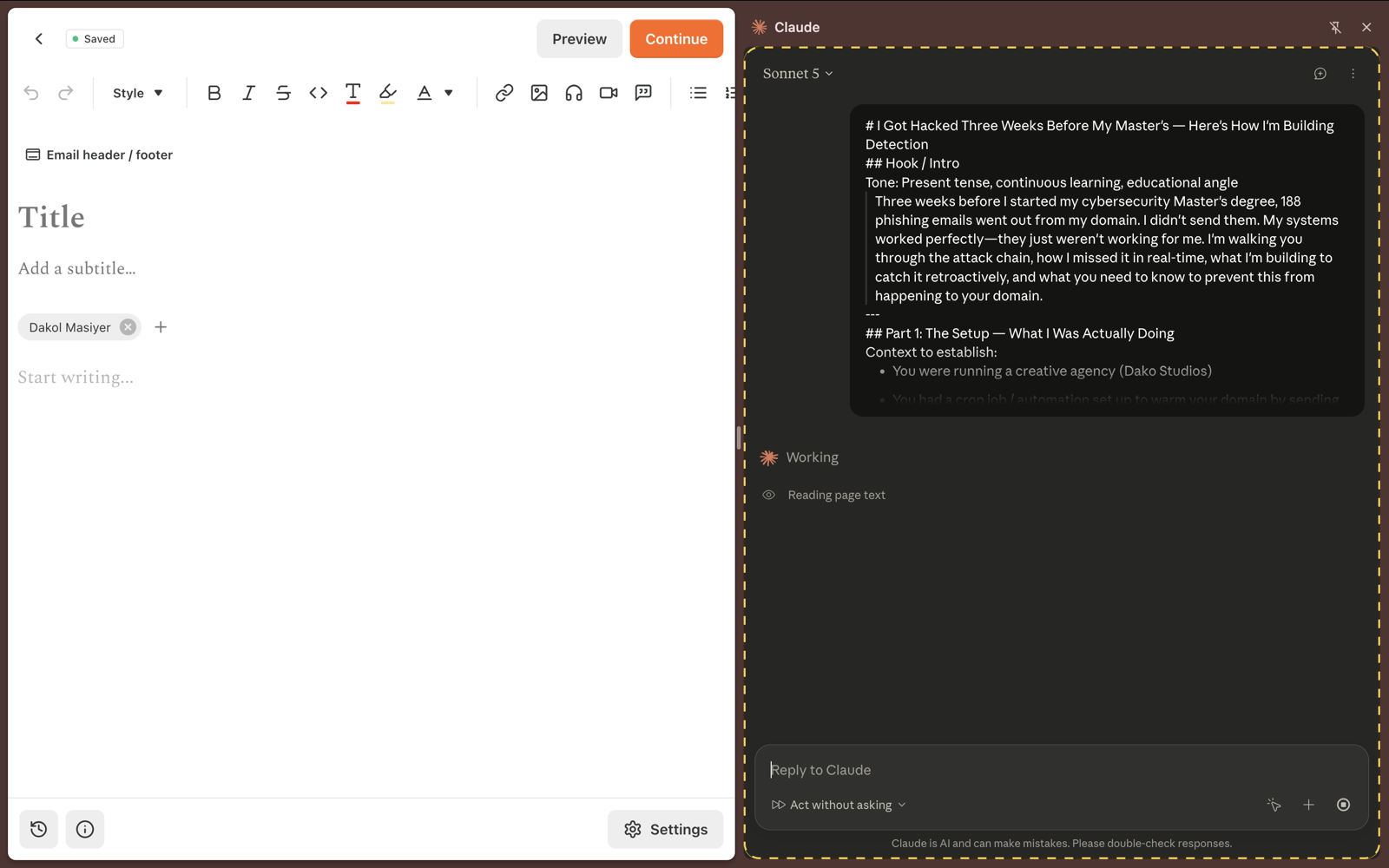
With the extension installed and Substack added to your allowed sites, open your Substack draft editor as you normally would in a Chrome tab. Then open the Claude side panel and give it your draft along with a clear instruction.
Hand over your draft along with a short, specific instruction. Something like:
"Open my Substack draft editor and paste this post in, using the same headers and paragraph breaks as the original. Don't publish it, just get it ready and show me the final layout."
Being specific about what "done" looks like matters more than being detailed about style. The agent is handling structure and mechanics, not your voice.
Step 4: Step away
This is the part people skip, and it's the part that actually matters. Once the agent has what it needs, go do something else. Take a call. Reply to a different message. Sit in another conversation entirely. The workflow only counts as agentic if you're genuinely not the bottleneck while it runs.
Step 5: Review before it goes live
When the agent finishes, don't publish blind. Read the formatted post the way a reader would. Check headers landed where you expected, check nothing got dropped or reordered, check any links are correct. This step stays yours, always. The agent handles the mechanical handoff, you keep the editorial judgement.
Step 6: Publish
Once you're satisfied, hit publish yourself, or ask the agent to, if you're comfortable with that level of handoff. Either way, the heavy lifting, the part that used to eat your afternoon, already happened while you were somewhere else.
What this isn't
This isn't the agent deciding what to write. It isn't publishing without a human checking first. And it isn't a shortcut around having something worth saying. The draft still has to be yours. What changes is everything mechanical that sits between a finished draft and a published post.
Where to start if this is your first agentic workflow
Start small. Don't hand over your most important post first. Try it on something low stakes, a short update, a simple announcement, and watch what the agent gets right and where you still needed to step in. That's how you learn where the handoff is solid, and where you still want your hands on it.

If this walkthrough helped, or you want to talk through setting up your own agentic workflow for content, reach out through Dako Studios. Happy to help you map out where handoff makes sense for your process.